 Rurev
RurevPhotos & scale entries
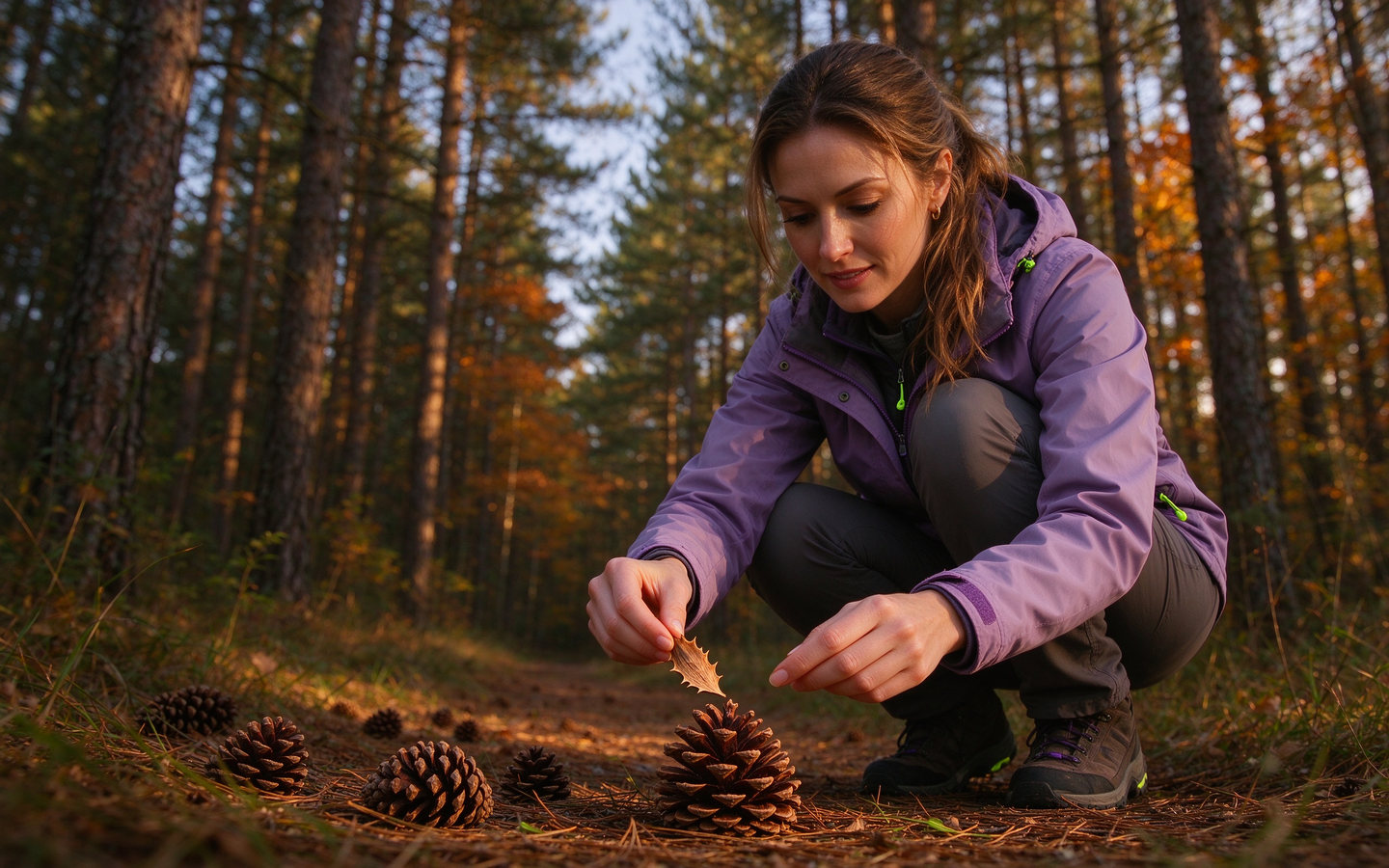
Capture or import both sides, then add the source cone, position, measurements, date, and site.
Keep your woodland finds organized. Find answers about scale photos, field cards, your account, and purchases—or send us a note when you need a hand.
Quick guidance for the moments that matter while building your collection.
Capture or import both sides, then add the source cone, position, measurements, date, and site.
Review saved notes and side-by-side comparisons of scales in your atlas.
Get help with sign-in, saved records, account controls, and coin purchases.
Choose a question to see the steps.
Open Scale Entry in Rurev. Take or import a photo of the front and back, then add the scale’s source cone, position, size, collection date, and site. You can also add a spoken field note before saving.
Check camera or microphone access for Rurev in iOS Settings. You can also import an existing image through the photo picker. If the camera is unavailable on your device, use the import option.
Open your atlas to browse scales by source cone position or site. Select scales to compare them side by side. Saved field cards are also available from Account → Field cards.
Field summaries bring together observations recorded for your selected scales, including tip shapes, ridge notes, and measurements. They help you revisit your own notes; they are not a botanical identification.
Open Account → Field coins to see available coin packs and your balance. Apple processes purchases through the App Store. If a completed purchase does not appear in your balance, restart Rurev and check your connection. If it still does not appear, email us with the product and approximate purchase time. Please do not send payment card details or your Apple ID password.
Open Account and choose Sign out or Delete account, then confirm your choice. If you cannot access your account or need help with a deletion request, email support.
Check your internet connection and sign in to the same Rurev account. If Account shows “Atlas sync needs attention,” choose Retry sync. If the issue continues, tell us which record is affected and what message you see.
Send your question to our support inbox. A few details about what happened will help us understand the issue.
Email Rurev support